If you've ever scanned a QR code at a restaurant or on a product package and thought, "I'd like to make one of those myself," you're not alone. QR code maker projects for Arduino beginners combine two things that are genuinely fun to learn physical electronics and digital encoding. These projects teach you how to generate QR codes on small screens, print them in real time, and wire up circuits that actually do something useful. The best part? You don't need advanced coding skills or expensive components to get started.
What exactly is a QR code maker project with Arduino?
A QR code maker project uses an Arduino microcontroller like the Uno, Nano, or ESP32 to programmatically generate and display QR codes. Instead of using a website or app to create a QR code, you write code that runs on the Arduino itself. The board then outputs the QR code to a connected display, such as an OLED screen, LCD module, or even a thermal printer. Some projects go further and let users type in text or URLs using a keypad, making the device a standalone QR code generator you can hold in your hand.
The core idea is simple: a library converts your text data into the square grid pattern that any phone camera can read. What makes these projects rewarding is combining that logic with real hardware buttons, screens, LEDs, and enclosures you build yourself.
Why should a beginner try building one?
Arduino projects can feel overwhelming when they don't have a clear purpose. A QR code maker gives you a concrete goal. You're not just blinking an LED you're building something that works with your phone and solves a real problem. That makes the learning stick.
Here's what you'll practice along the way:
- Installing and using Arduino libraries you'll work with QR code generation libraries like
qrcode.hand display libraries likeAdafruit_SSD1306. - Wiring up an OLED or LCD display using I2C or SPI protocols.
- Writing logic that takes user input and converts it into encoded data.
- Debugging hardware and software together, which is the core skill of embedded programming.
If you want to see a broader range of ideas before picking one, there are beginner-friendly QR code maker projects that walk you through different levels of complexity.
What hardware do I need to get started?
You don't need much. Here's a basic parts list that covers most beginner QR code projects:
- Arduino Uno or Nano either works fine. The Nano is smaller, which helps if you're building a handheld device.
- 0.96-inch SSD1306 OLED display this is the most common screen for these projects. It's cheap (usually under $5), compact, and connects via I2C with just four wires.
- Breadboard and jumper wires for prototyping.
- Push buttons or a small keypad if you want to input custom text or URLs.
- USB cable for programming and power.
For more advanced builds, you might add a thermal printer module like the Adafruit Mini Thermal Printer, which physically prints the QR code on receipt paper. Or use a larger ST7735 color TFT display if you want a bigger, color-coded output. Display fonts that mimic pixel font styles can make on-screen text look cleaner and match the grid aesthetic of QR codes.
How do I generate a QR code on Arduino?
The most popular library for this is qrcode.h by Richard Moore. It's lightweight, runs on AVR-based boards, and works well with small displays. Here's the general process:
- Install the library through the Arduino Library Manager by searching for "QRCode."
- Include the header in your sketch and initialize it with a version number (this controls the size and data capacity of the code).
- Call the encode function with your string data this could be a URL, plain text, a Wi-Fi password, or anything else.
- Loop through the QR code array and draw each module (the tiny black or white squares) pixel by pixel on your display.
The library returns a 2D array where each cell is either 0 (white) or 1 (black). You map that to screen pixels. On a 128×64 OLED, a Version 2 QR code fits nicely with room to spare.
If you want a more detailed walkthrough on different ways to set this up, the guide on creating QR code projects using maker codes covers several approaches with actual code snippets.
What can I actually build with this?
Once you understand the basics, the project ideas multiply quickly. Here are a few that beginners have built successfully:
- A Wi-Fi login card generator type in your network name and password, press a button, and the OLED shows a QR code that phones can scan to connect automatically.
- A vCard or business card display store your contact info as a QR code on a small device you carry to events.
- A dynamic URL shortener display connect an ESP32 to the internet, pull a shortened URL from a server, and display it as a scannable code.
- A classroom scavenger hunt station place Arduino-powered displays around a room, each showing a QR code that leads to the next clue. This works especially well when combined with a scavenger hunt project designed for classrooms.
- A receipt-style QR printer using a thermal printer module, print physical QR codes on demand for events, inventory labels, or game props.
Some makers also experiment with custom display fonts to label their screens. A seven segment font works well for numeric displays alongside the QR output, especially in countdown-timer or ticket-numbering projects.
What mistakes do beginners usually make?
These projects are forgiving, but a few common trip-ups come up again and again:
- Choosing too large a QR version. A Version 4 or 5 QR code stores more data but takes up more screen space. On a tiny 0.96-inch OLED, a high-version code becomes unreadable. Start with Version 1 or 2 for short strings.
- Forgetting the quiet zone. QR codes need a blank margin of at least four modules around the edges. If you draw the code right up against the screen border, many phones won't scan it.
- Low contrast on the display. Always use white background with black modules. Reversing the colors or using gray tones confuses scanners.
- Not testing with multiple phones. What scans fine on a new iPhone might fail on an older Android. Test with at least two or three devices.
- Overloading data into one code. Keep URLs short. Use a link shortener if needed. The more data you cram in, the denser and harder to scan the code becomes.
How do I make the QR code easier to scan?
Scanning reliability matters more than anything else. A QR code that doesn't scan is useless, no matter how cool the project looks. Here are proven ways to improve scan rates:
- Increase module size. When drawing the QR grid on screen, make each module at least 2×2 pixels, ideally 3×3 on a 128×64 OLED. Bigger modules scan faster.
- Use error correction level M or H. The qrcode.h library supports different correction levels. Higher correction means the code survives partial damage or smudging.
- Keep data short. Under 50 characters is ideal for small displays.
- Ensure stable power. A flickering or underpowered display produces visual noise that breaks scans. Use a dedicated power rail, not just USB power, if you're driving multiple components.
What should I build next after the basics?
Once your first QR code appears on screen and scans successfully that's a real milestone. From there, you can push the project further:
- Add button input so users can cycle through different stored QR codes.
- Connect to Wi-Fi using an ESP32 and fetch QR content from a web API.
- Log scan data by pairing your generator with an Arduino-based QR code scanner using a camera module, creating a check-in system.
- Design a 3D-printed enclosure to turn your breadboard prototype into a polished, handheld gadget.
- Combine with other maker tools laser-cut holders, custom PCBs, or e-ink displays that keep the QR code visible without consuming power.
If you're using monospace font styles in your project documentation or labels, it helps everything look clean and consistent on both screen and paper.
Quick-start checklist for your first QR code Arduino project
- ✅ Get an Arduino Uno or Nano and a 0.96-inch SSD1306 OLED display
- ✅ Install the qrcode.h and Adafruit_SSD1306 libraries from the Arduino Library Manager
- ✅ Wire the OLED via I2C (SDA → A4, SCL → A5, VCC → 3.3V or 5V, GND → GND)
- ✅ Start with a Version 2 QR code and a short test string like a URL
- ✅ Draw each module at 3×3 pixels with a 4-module quiet zone margin
- ✅ Test scanning with at least two different phones before calling it done
- ✅ Add a button to cycle between stored codes once the basics work
- ✅ Share your build and learn from what others have made it speeds up your next project
Start small, get that first scan working, and build from there. The gap between "blinking an LED" and "generating a QR code on a tiny screen" is smaller than you think.
 How to Create Qr Code Projects Using Maker Codes: a Step-by-Step Guide
 Qr Code Maker Projects for Laser Engraving – Diy Designs & Guides
 Creating Custom Qr Code Art with Your Cricut Machine
 Qr Code Scavenger Hunt Project Ideas for Classroom Engagement
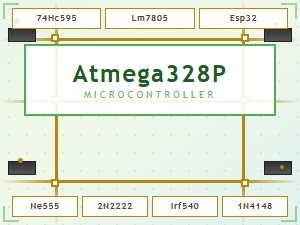 Common Maker Codes for Circuit Board Components Explained
 Smd Component Maker Markings Reference Chart for Electronics Schematics