Maker space printers see more abuse in a week than most home printers see in a year. Multiple users, different filament brands, varying experience levels, and back-to-back print jobs all put serious stress on shared machines. When things go wrong, the print fails, filament gets wasted, and the next person in line has to wait. That's where G-code optimization for maker space printers comes in. Tuning your G-code files before they hit the build plate saves material, cuts down on failed prints, and keeps the queue moving.
What exactly is G-code, and how does it affect your prints?
G-code is the set of instructions that tells a 3D printer what to do move here, heat this, extrude that much plastic. Every slice of software generates G-code from your STL or 3MF file, but the default output is rarely ideal for a shared environment. The generated commands control layer height, print speed, temperature, retraction, cooling, and dozens of other variables that directly affect print quality and reliability.
In a maker space, you're not slicing for one perfect setup. You're dealing with machines that might have slightly worn nozzles, beds that aren't always perfectly leveled, and filaments that have absorbed moisture sitting on open shelves. Optimizing G-code means adjusting those machine commands to handle real-world conditions instead of ideal lab conditions.
Why can't you just use the default slicer settings?
Default slicer profiles are built for a single user with a known filament on a well-maintained machine. In a maker space, those assumptions break down fast. Here's what typically happens:
- Someone loads a PLA profile but the filament on the spool is actually PETG from a different user
- The first layer adhesion fails because the bed temperature is set for a glass surface, but someone swapped to a magnetic PEI sheet last week
- Retraction settings cause clogs because the Bowden tube has some wear after hundreds of hours of use
- Print speeds are too aggressive for the mechanical condition of the machine
Each of these problems traces back to G-code that doesn't match the actual machine state. A little upfront optimization in the G-code or in the slicer profile that generates it prevents most of these failures.
Which G-code settings matter most for shared printers?
Start and end G-code sequences
The start G-code runs before the print begins. The end G-code runs after it finishes. For maker spaces, these sequences should include a nozzle purge line to clear old material, a bed leveling probe routine if the machine supports it, and a proper cooldown sequence. You can explore custom G-code scripts for delta printers if your space runs delta-style machines, since their start and end routines differ from Cartesian printers.
A solid start sequence for a shared printer might look like this in practice: home all axes, run a G29 auto-bed-leveling probe, move to a purge line position, extrude a short line of filament to prime the nozzle, then begin the actual print. This single change prevents a huge number of first-layer failures.
Retraction distance and speed
Retraction pulls filament back during travel moves to reduce stringing. On a shared printer with a Bowden-tube setup, you typically need longer retraction distances (4–6mm) compared to direct-drive extruders (1–2mm). If users keep reporting stringing or blobs, retraction tuning in the G-code is the first thing to check.
Temperature commands (M104, M109, M140, M190)
Maker spaces often stock a mix of PLA, PETG, and ABS. Rather than baking one temperature into the G-code, set reasonable defaults and teach users to verify. M104 sets the hotend temperature without waiting; M109 sets it and waits until reached. Same logic applies to M140 and M190 for the bed. If your space uses OctoPrint or a similar system, you can create temperature presets that modify the G-code before sending it to the printer.
Print speed and acceleration
Slower isn't always better, but overly aggressive speeds cause layer shifts, ringing, and under-extrusion on machines with worn components. For most shared FDM printers, keeping outer walls at 40–50mm/s and infill at 60–80mm/s gives a good balance. These values get set through slicer settings but show up as F (feedrate) values in the G-code commands.
How do you handle multiple filament types on the same machine?
This is one of the biggest headaches in a maker space. PLA needs a bed around 60°C and hotend around 200°C. PETG wants 70–80°C on the bed and 230–245°C on the hotend. ABS demands an enclosure and temperatures north of 100°C on the bed.
The practical approach is to create separate slicer profiles which generate different G-code for each common filament. Label them clearly: "PLA Standard," "PETG Standard," "ABS with Enclosure." Post a reference sheet near each printer so users know which profile matches which filament. If you're working with multi-material setups, look into advanced G-code techniques for multi-material printing for more detailed guidance.
What are the most common G-code mistakes in maker spaces?
- Skipping the purge line. Without it, old filament residue contaminates the first few centimeters of the print.
- Using someone else's G-code file directly. G-code generated for one machine often doesn't translate to another, even if both are the same model. Slight mechanical differences add up.
- Ignoring firmware differences. Marlin, Klipper, and RepRapFirmware interpret some commands differently. A G-code file tuned for Marlin might behave oddly on a Klipper machine.
- Hardcoding temperatures into every G-code file. This works fine until someone loads a different filament type and forgets to reslice. Use placeholder values or slicer profiles instead.
- Not updating G-code after hardware changes. Swapping a nozzle from 0.4mm to 0.6mm changes extrusion math completely. If the G-code still assumes 0.4mm, prints will fail.
- Forgetting to set the E-steps or flow rate. Different filaments have slightly different diameters. A flow rate adjustment of 95% vs. 100% can mean the difference between clean walls and over-extruded blobs.
How do you create G-code profiles that work for everyone?
You don't need to hand-write G-code line by line. Use a slicer like PrusaSlicer, Cura, or OrcaSlicer to generate profiles, then fine-tune the start and end G-code sections manually. Here's a practical workflow:
- Pick one slicer and commit to it across the space. Mixing slicers creates confusion.
- Build a base profile for each printer with conservative, reliable settings.
- Create material-specific variants (PLA, PETG, ABS) that inherit from the base profile.
- Test each profile with a standard calibration print like a 20mm cube or a benchy.
- Document the settings on a shared drive or wiki so anyone can reference them.
- Review and update quarterly or whenever hardware changes happen.
Can post-processing G-code help in a shared environment?
Yes. Post-processing scripts modify G-code after the slicer generates it. Common uses in maker spaces include:
- Injecting a notification command (like an OctoPrint pause or webhook) at specific layer heights
- Adding a filament-change command (M600) for multi-color prints on single-extruder machines
- Inserting temperature ramp commands for materials that need gradual cooling to prevent warping
- Stripping out M84 (stepper disable) commands if you want the printer to hold position after a print for inspection
Most slicers support post-processing scripts natively. In PrusaSlicer, you can add them under Print Settings > Post-processing scripts. In Cura, they live under Extensions > Post Processing > Modify G-code.
What tools can help manage G-code across multiple printers?
OctoPrint with multiple instances is the most common solution for maker spaces. It lets you upload, preview, and manage G-code files for each printer from a central interface. Paired with plugins like OctoPrint-GcodeSystemCommands, you can automate tasks like pre-print checks and post-print cooldowns.
Repetier-Server is another option that handles multiple printers from one dashboard. If your space runs Klipper firmware, Mainsail or Fluidd web interfaces offer built-in G-code management with real-time monitoring.
For font-based documentation or code editors where you're reviewing raw G-code, a clean monospace typeface like Fira Code makes reading command sequences much easier on the eyes.
Quick checklist before sending G-code to a shared printer
Use this as a reference to keep prints running smoothly:
- Verify the filament type loaded on the machine matches the G-code profile (PLA, PETG, ABS)
- Check bed surface type glass, PEI, BuildTak and confirm temperature settings match
- Confirm nozzle diameter in the G-code matches the physical nozzle on the printer
- Review the start G-code to make sure it includes homing, bed leveling, and a purge line
- Check the end G-code to confirm it disables heaters and moves the bed forward for easy part removal
- Look at estimated print time if it seems too long or short, something might be off with speed or layer height
- Inspect the first layer preview in your slicer's G-code viewer for gaps, overlaps, or travel moves that look wrong
- Save a backup of any working G-code profile before making changes
Start with one printer. Build a reliable base profile, test it, document it, and share it with your maker space community. Small G-code tweaks compound into fewer failed prints, less wasted filament, and a much smoother experience for everyone using the machines.
 Maker-Created G-Code Patterns for 3d Printing Projects
 Custom G-Code Scripts for Delta Printers
 G-Code Community Forums: Troubleshooting 3d Print Errors and Fixes
 Advanced G-Code Techniques for Multi-Material Printing
 How to Create Qr Code Projects Using Maker Codes: a Step-by-Step Guide
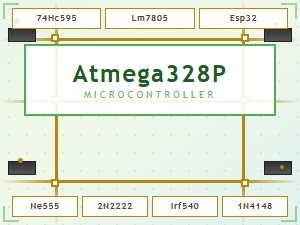 Common Maker Codes for Circuit Board Components Explained