Multi-material 3D printing sounds simple on the surface load two or three filaments, hit print, and let the slicer do its thing. But anyone who has actually tried it knows the reality is messier. Prints fail at tool changes. Colors bleed into each other. Filament oozes across the bed during a swap. The difference between a failed multi-material print and a clean one often comes down to one thing: the G-code running underneath.
Understanding advanced G-code techniques for multi-material printing gives you direct control over how your printer handles tool changes, purge routines, temperature transitions, and material priming. Instead of hoping your slicer gets it right, you can write, edit, and optimize the commands yourself. This matters because multi-material setups dual extrusion, mixing hotends, IDEX systems, and tool-changers all behave differently, and a one-size-fits-all slicer profile rarely covers every edge case.
What does multi-material G-code actually control?
At its core, multi-material G-code manages the coordination between two or more extruders or filament paths within a single print job. The printer needs to know which tool is active, when to switch, what temperature each material needs, and how to handle the filament that is not currently printing.
Key responsibilities of multi-material G-code include:
- Tool selection telling the printer which extruder to use via T-codes (T0, T1, T2, etc.)
- Temperature management setting independent hotend and bed temperatures per material
- Purge and prime sequences clearing residual filament from the nozzle before and after a swap
- Retraction and z-hop settings preventing oozing and stringing during inactive periods
- Wipe tower or prime tower coordinates defining where the printer purges excess material
- Travel and parking moves positioning the inactive toolhead to avoid collisions or dragging
If any of these steps are off by even a few millimeters or degrees, you get artifacts blobs, under-extrusion at layer starts, color contamination, or outright print failures.
How do tool-change commands (T-codes) work?
The T-code is the most fundamental command in multi-material printing. T0 selects the first extruder, T1 selects the second, and so on. Most firmware Marlin, RepRapFirmware, Klipper supports at least two tool heads.
When your slicer inserts a T-code, the firmware runs a tool-change macro. This macro is where most of the real work happens. A typical sequence looks like this:
- Retract the currently active filament
- Lower or raise the nozzle (z-hop)
- Move the inactive toolhead to a safe parking position
- Move the new toolhead into position
- Set the temperature for the new tool
- Prime the new nozzle with a short extrusion
- Resume printing
In Marlin firmware, you can define these steps in the T0, T1, etc. macros. In Klipper, you write [gcode_macro T0] sections in your config. RepRapFirmware uses tpre.g, tpost.g, and tfree.g files for before, after, and free-tool events.
The critical insight here is that your slicer inserts the T-code, but your firmware macro defines what actually happens during the swap. Editing that macro is where advanced control begins.
What M-codes matter most for multi-material setups?
Beyond T-codes, several M-codes handle the details that make multi-material printing reliable:
M104/M109Set or wait for hotend temperature. UseM104 T0 S200to set the first extruder to 200°C without blocking, orM109 T1 S215to wait until the second extruder reaches 215°C before continuing.M140/M190Set or wait for bed temperature. Useful when materials have different bed adhesion requirements.M106Fan speed control. Some materials like PLA need aggressive cooling; others like ABS need the fan off. You can switch fan profiles during tool changes.M82/M83Absolute or relative extrusion mode. Switching between them during tool changes can prevent double-extrusion bugs.G10/G11Firmware retraction. Cleaner than manual E-axis retractions and works across tools consistently.
If you are working with custom G-code scripts for delta printers, these same M-codes apply, though the geometry and movement constraints differ from Cartesian machines.
How do you write a proper purge and prime sequence?
Poor purge routines are the number one cause of color contamination in multi-material prints. When you swap from a dark filament to a light one, residual dark filament in the nozzle will streak into the first few centimeters of the new color unless you purge it properly.
A solid purge sequence involves:
- Fast retraction pull back the old filament quickly (typically 5–8mm at 30–60 mm/s) to reduce oozing.
- Park move move the toolhead to a purge position, usually off the print or on a wipe tower.
- Extrude purge push a set amount of new filament through (15–30mm depending on nozzle size and material) to flush the old color.
- Wipe drag the nozzle across a wipe tower surface to remove the purge blob.
- Prime extrusion extrude a small amount (2–5mm) at print speed to build pressure in the nozzle before resuming the actual print path.
G1 E-5 F3600retract 5mm at 60mm/sG91G1 Z5 F1200z-hop 5mmG90T1activate second extruder (runs firmware macro)M109 T1 S210wait for T1 to reach 210°CG1 X50 Y200 F6000move to purge positionG1 E25 F300extrude 25mm of purge filamentG1 E-2 F3600small retract to prevent oozeG1 X[YOUR PRINT POSITION] F6000return to print- Start heating the next tool early. Insert
M104 T[next] S[temp](non-blocking heat command) several lines before the actual T-code swap. This way the hotend is nearly at target temperature when the swap occurs. - Use standby temperatures. Instead of fully cooling an idle extruder, hold it at a reduced temperature (150–170°C for PLA, 200–220°C for ABS). This cuts heating time and avoids thermal stress from repeated full heat-cool cycles.
- Monitor for heat creep. Keeping an idle hotend warm too long can soften filament above the heatbreak, causing jams. If your standby temperature is above the filament's glass transition temperature, limit idle time.
- Not defining tool-change macros. If your firmware has no T0/T1 macro, the printer just switches the extruder index without retracting, parking, or priming. You get blobs and under-extrusion at every swap.
- Wrong extrusion mode after a swap. If the macro does not explicitly set
M82orM83, the extruder might interpret the next E-value as absolute, causing massive over- or under-extrusion. - Insufficient purge length. Slicers often default to minimal purge amounts. For color-sensitive prints (white next to black), increase purge volume significantly or use a larger wipe tower.
- Z-offset drift between tools. If the two nozzles are not exactly at the same height, one will scrape or print too high. Calibrate nozzle offsets carefully using a single-layer test print with both extruders.
- Ignoring retraction distance on long travels. Multi-material prints often have longer travel moves during swaps. If retraction is too short, filament oozes and strings. For Bowden setups, 5–8mm retraction is typical; for direct drive, 1–3mm.
- Hardcoding values that should be parameterized. If you write a purge length of 20mm into every T-code macro, it will not adapt when you switch from PLA+PLA to PLA+TPU. Use slicer-inserted variables or firmware parameters when possible.
- IDEX setups where the second head mirrors, copies, or operates independently
- Mixing hotends that blend two filaments in variable ratios using
M163andM164commands - Tool-changer systems (like E3D's or Tapchanger) where each tool has mechanical dock/undock sequences
- Custom purge systems that use buckets, brushes, or custom wipe towers instead of slicer-generated ones
- Non-standard material combinations where you need precise temperature ramps, not instant swaps
- Dry run with cold extrusion. Add
M302 S0(disable cold extrusion protection) and run the print at 0.1x speed with no heating. Watch the tool changes, travel moves, and purge sequences for mechanical issues. - Single-layer swap test. Print a small two-color model (like a flat disc with two halves). This tests the full tool-change cycle in under 10 minutes.
- Monitor the purge tower. If the wipe tower looks clean and consistent, your purge and prime sequences are working. Blobs, gaps, or delamination on the tower indicate problems.
- Check first-layer adhesion after each swap. The first few extrusions after a tool change are the most fragile. If they do not stick, your prime sequence needs more extrusion or a slower speed.
- Log temperatures. Use
M105temperature reports or firmware logging to verify that hotends reach and hold target temperatures at each swap. - You can tune retraction without re-slicing
- Each tool can have independent retraction settings (Marlin supports per-tool firmware retraction with
M207andM208) - The slicer inserts simpler G-code, reducing file size
- ✅ Tool-change macro defined for every T-code your print uses (T0, T1, etc.)
- ✅ Retraction set per tool correct distance for direct drive vs. Bowden on each head
- ✅ Purge length tested with your specific color combination dark-to-light needs more
- ✅ Standby temperatures configured so idle tools stay warm enough to swap quickly but cool enough to prevent heat creep
- ✅ Nozzle Z-offset calibrated between tools using a two-extruder test print
- ✅ Extrusion mode explicitly set (
M82orM83) after each tool change - ✅ Fan speed managed per material do not leave PLA cooling on during an ABS extrusion
- ✅ Dry run completed at low speed to verify mechanical moves before wasting filament
- ✅ Firmware retraction enabled if your setup supports it, with per-tool values
- ✅ Wipe tower or purge bucket positioned where it will not collide with the print or gantry
Here is a simplified example for a dual-extruder swap from T0 to T1:
Adjust purge length based on your material combination. Translucent filaments need more purging. Same-family materials (like two PLA colors) need less.
How do you handle different temperatures between materials?
Multi-material printing often pairs materials with different thermal needs PLA at 200°C with PVA at 190°C, or ABS at 240°C with HIPS at 230°C. Managing temperature transitions properly prevents two problems: printing at the wrong temperature (causing poor layer adhesion or stringing) and waiting too long for temperatures to change (causing oozing and heat creep on the idle tool).
A practical approach:
These temperature strategies also apply when you explore maker-created G-code patterns for 3D printing, where community-tested temperature profiles can save you trial-and-error time.
What are the most common mistakes in multi-material G-code?
After working through dozens of failed multi-material prints, patterns emerge. These are the mistakes that show up most often:
When should you write custom G-code instead of relying on the slicer?
Slicers like PrusaSlicer, Cura, and OrcaSlicer handle basic multi-material workflows well. They insert tool changes, generate wipe towers, and manage temperature swaps. But there are situations where the slicer's output is not enough:
In these cases, writing or editing G-code directly or at least modifying the tool-change macros gives you the control you need. For delta printer owners, writing custom G-code scripts is often necessary because slicers assume Cartesian kinematics by default.
How do you test and debug multi-material G-code safely?
Testing new G-code on a multi-material setup can waste filament and time if you do not have a process. Here is a practical testing method:
What about firmware retraction for multi-tool prints?
Firmware retraction (G10 to retract, G11 to unretract) is especially useful in multi-material printing because it lets you control retraction distance and speed from the firmware side rather than baking it into the G-code. This means:
If your firmware supports it, enable firmware retraction and set per-tool values. A direct-drive T0 might use M207 S1.0 F3600 while a Bowden T1 uses M207 S6.5 F3600.
How do you format text or labels onto multi-material prints?
One practical use of multi-material printing is embedding text, logos, or labels directly into a print using a contrasting filament color. To do this well in G-code, you need to place tool changes precisely at the layers where text begins and ends, and ensure the text extruder uses the correct flow rate for the small features.
Some makers use design fonts like Bebas Neue or Montserrat for their label designs because their clean geometry translates well to extruded paths. Fonts with very thin strokes or high detail, like Playfair Display, can be harder to print cleanly at small sizes the slicer may skip thin features that fall below the nozzle width.
Practical checklist for advanced multi-material G-code
Before running a multi-material print with custom or edited G-code, walk through this list:
Next step: Pick one tool-change issue from your last failed multi-material print, open your firmware's T-code macro, and fix just that one thing. Test with a single-layer two-color disc. Repeat until every swap is clean. Small, targeted edits to G-code macros will get you further than re-slicing with new profiles every time.
 Maker-Created G-Code Patterns for 3d Printing Projects
 Custom G-Code Scripts for Delta Printers
 G-Code Community Forums: Troubleshooting 3d Print Errors and Fixes
 G-Code Optimization Tips for Maker Space 3d Printers
 How to Create Qr Code Projects Using Maker Codes: a Step-by-Step Guide
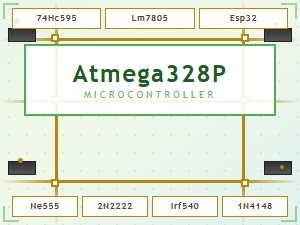 Common Maker Codes for Circuit Board Components Explained